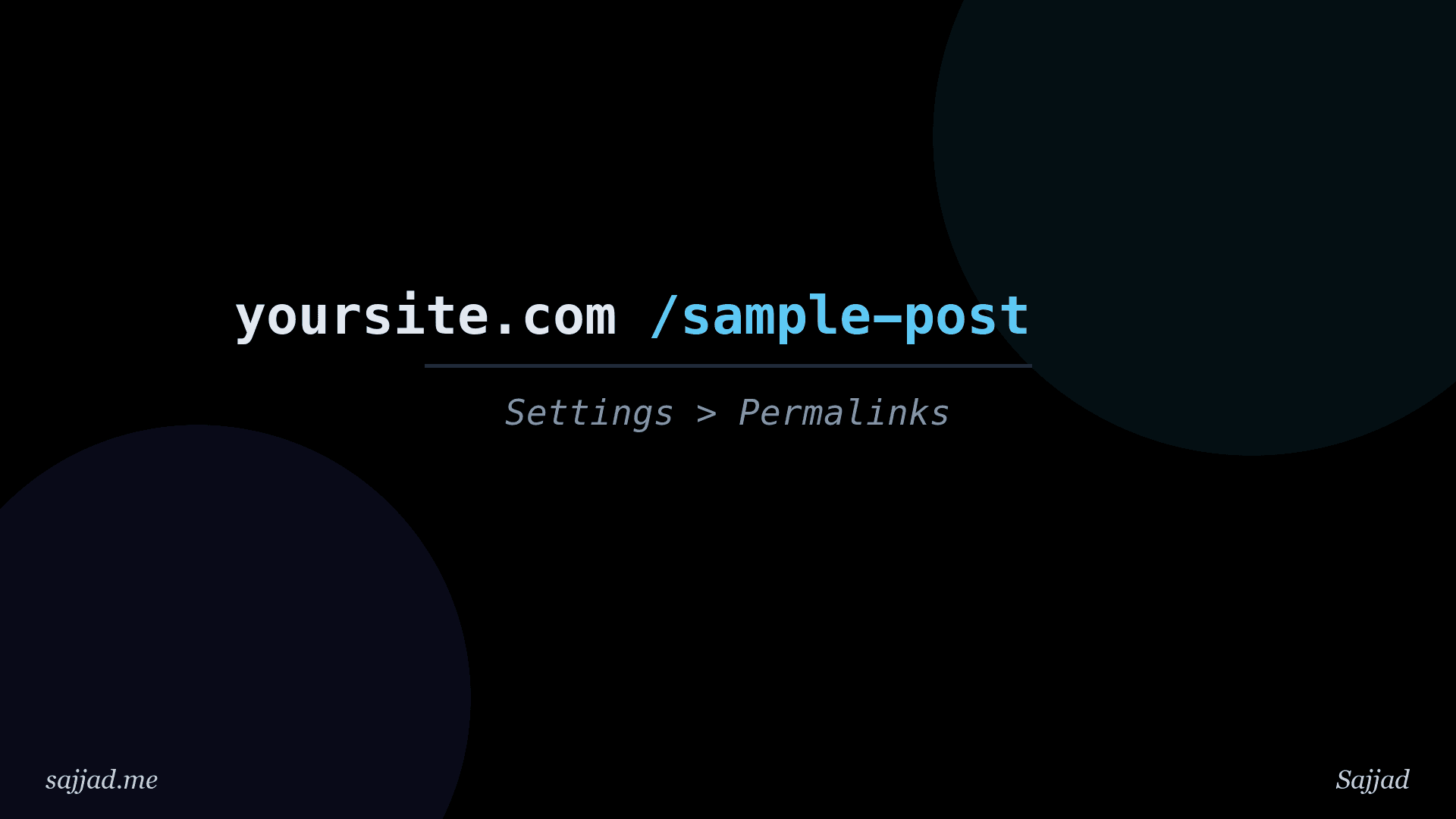
What is a WordPress permalink and how do I change it?
A WordPress permalink is the permanent URL that points to a specific post, page, category, or other piece of content on your site. Unlike a temporary preview link, a permalink is meant to stay the same for as long as that content exists, which is exactly why "perma" is short for "permanent." WordPress generates one automatically for every piece of content you publish, but it also gives you full control over the structure behind it.
Getting your permalink structure right matters more than it might seem. It affects how readable your URLs are, how easy they are to share, and how well search engines understand your content. This article explains what permalinks are, the different structures WordPress offers, and exactly how to change yours safely.
What Is a WordPress Permalink?
A permalink is simply the full URL of a specific page on your site, for example:
https://yoursite.com/what-is-a-wordpress-permalink
Every post, page, category archive, tag archive, and author archive on a WordPress site has its own permalink. When someone bookmarks a post, shares it on social media, or links to it from another website, they're using its permalink.
By default, WordPress builds this URL from a combination of your site's domain and a "structure" that determines what comes after it, whether that's the post's title, its ID number, the date it was published, or some combination of these.
Why Do Permalinks Matter?
Readability: A permalink like /what-is-a-wordpress-permalink tells both visitors and search engines what the page is about at a glance. A permalink like /?p=123 tells them nothing.
SEO: Search engines use the words in a URL as a small ranking signal, and a clean, descriptive permalink is easier to share and more likely to be clicked in search results.
Consistency: Once a permalink is out in the world, whether in a browser bookmark, a shared link, or another site's backlink, changing it can break that link unless you set up a redirect.
Branding and trust: Clean, human-readable URLs look more professional and trustworthy than long strings of numbers and query parameters.
WordPress's Built-In Permalink Structures
WordPress ships with several predefined permalink structures, found under Settings > Permalinks:
Plain: ?p=123 — Uses the post's ID number. Simple for WordPress to generate, but not readable or SEO-friendly.
Day and name: /2026/09/03/sample-post/ — Includes the full publish date and the post's slug.
Month and name: /2026/09/sample-post/ — Includes the year and month, followed by the slug.
Numeric: /archives/123 — Similar to Plain, but wrapped in an /archives/ path.
Post name: /sample-post/ — Uses only the post's slug. This is the most commonly recommended structure for readability and SEO.
Custom Structure: Lets you build your own format using WordPress's permalink tags, such as /%category%/%postname%/.
Permalink Structure Tags
If you choose a custom structure, WordPress gives you a set of tags to build it from:
%year%— The four-digit year of the post.%monthnum%— The two-digit month.%day%— The two-digit day.%hour%,%minute%,%second%— The time of publishing.%postname%— The post's slug, based on its title.%post_id%— The unique numeric ID of the post.%category%— The primary category of the post.%author%— The username of the post's author.
For example, /%category%/%postname%/ would produce a URL like /wordpress/what-is-a-wordpress-permalink/.
How to Change Your WordPress Permalink Structure
- Log in to your WordPress admin dashboard.
- Navigate to
Settings > Permalinks. - Choose one of the built-in structures, or select
Custom Structureand enter your own combination of tags. - Click
Save Changes.
WordPress will apply the new structure to all posts and pages going forward, and update the .htaccess file (on Apache servers) or equivalent rewrite rules automatically in most cases.
How to Change a Single Post's Permalink (Slug)
You don't need to change your entire site's structure to update the URL of one specific post:
- Open the post or page in the editor.
- In the Block Editor, find the
Permalinkpanel in the sidebar (usually under the post's URL preview near the title). - Click
Edit, update the slug, and clickSaveorOK. - Update the post to apply the change.
In the Classic Editor, this same option appears directly below the title field once the post has been saved as a draft or published.
What Happens to Old Links When You Change a Permalink?
Changing a permalink, whether for a single post or your entire site, means the old URL will no longer automatically resolve to your content. Anyone who visits the old link, including search engines that have already indexed it, will get a 404 error unless you take action.
To avoid broken links and lost SEO value:
Set up a 301 redirect: A 301 redirect tells browsers and search engines that the content has permanently moved to a new address, and passes along most of the original page's SEO value. Plugins like Redirection or Yoast SEO's premium redirect manager make this straightforward.
Update internal links: Search your site for any places you linked to the old URL directly, such as in your navigation menu, other posts, or widgets, and update them to point to the new one.
Resubmit your sitemap: After making significant changes, resubmitting your XML sitemap to Google Search Console helps search engines discover the updated URLs faster.
Best Practices for WordPress Permalinks
Use the "Post name" structure: For most sites, /%postname%/ offers the best balance of readability, brevity, and SEO performance.
Keep slugs short and descriptive: Aim for a handful of relevant keywords rather than copying your full post title verbatim.
Avoid stop words when possible: Words like "a," "the," and "of" can usually be trimmed from a slug without losing meaning.
Decide on your structure early: Changing your permalink structure after a site has been live for a while, especially one indexed by search engines, requires careful redirect planning. Settle on a structure as early as possible.
Avoid changing published slugs unnecessarily: Only edit a live post's slug when there's a good reason to, and always set up a redirect from the old URL when you do.
Don't use dates in the URL unless necessary: Date-based permalinks can make evergreen content look outdated, even if the information is still current.
Troubleshooting Common Permalink Issues
404 errors after changing permalinks: This is often fixed by visiting Settings > Permalinks and clicking Save Changes again, even without altering anything, since this forces WordPress to flush and regenerate its rewrite rules.
Permalinks not working at all: On Apache servers, this can happen if the .htaccess file is missing or your server doesn't have mod_rewrite enabled. On Nginx, you may need to manually add rewrite rules, since Nginx doesn't use .htaccess.
Duplicate slugs: If two pieces of content end up with the same slug, WordPress automatically appends a number (like -2) to the second one. It's worth checking and manually renaming these for clarity.
Broken links after a structure change: If you changed your site-wide permalink structure and are seeing broken links, install a redirect plugin and configure rules to map the old structure to the new one.
FAQ: WordPress Permalinks
A WordPress permalink is the permanent URL of a specific post, page, or other piece of content on your site, meant to stay consistent for as long as that content exists.
Go to Settings > Permalinks in your WordPress dashboard, choose a structure (or build a custom one), and click Save Changes.
The "Post name" structure, /%postname%/, is generally recommended because it produces short, readable, keyword-relevant URLs.
Yes. Open the post in the editor, edit its slug in the Permalink panel (Block Editor) or below the title (Classic Editor), and update the post.
The old URL will stop working unless you set up a 301 redirect to the new address. Without one, visitors and search engines following the old link will see a 404 error.
This is usually fixed by revisiting Settings > Permalinks and clicking Save Changes again to force WordPress to regenerate its rewrite rules.
Yes, to a degree. Clean, descriptive permalinks are easier for search engines and users to understand, and they tend to perform slightly better in search results and click-through rates than long, unstructured URLs.
Conclusion
A WordPress permalink is more than just a technical detail, it's the address readers, search engines, and other websites use to find and reference your content. Choosing a clear, consistent permalink structure early on, and changing individual slugs thoughtfully with proper redirects in place, will save you from broken links and lost search rankings down the road.
If you're just getting started, the "Post name" structure is a safe, SEO-friendly default. If you're changing an established site's permalinks, take the extra time to set up redirects and update your internal links, your visitors and your search rankings will thank you for it.


